The Second Lock: A Plain-English Guide to Two-Factor Authentication
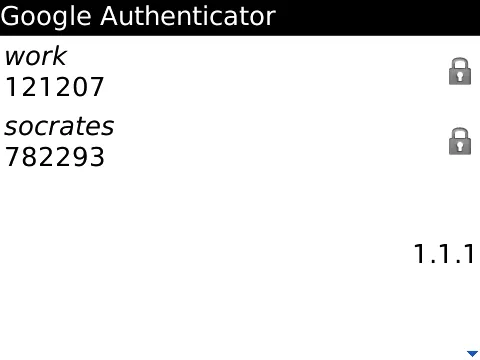
Photo: own work, CC0, via Wikimedia Commons
With Thanksgiving tomorrow and Black Friday sales already live, you are about to type card numbers into more websites than usual. That makes late November a good time to add one extra lock to the accounts you care about. The lock is called two-factor authentication. You do not need to understand the engineering behind it. You just need to know which option to pick and where the setting lives.
The Basic Idea, Minus the Acronym
A password is something you know. Two-factor authentication asks for something else too: something you have, like your phone, or something you are, like your fingerprint or face. Think of an ATM: the card is one factor, the PIN is another. If someone steals your password, they still should not get in without the second step.
It is not magic. It will not fix a weak password or a fake website that tricks you into handing over a code. But it blocks a huge share of ordinary account takeovers, especially when a password leaks from one site and gets tried on another.
The Three Main Options in Everyday Terms
Text-message codes
This is the one most people have seen. You enter your password, the site texts you a six-digit code, and you type it in. It is easy to understand and widely supported. It is also the weakest of the three main options. Phone numbers can be stolen through SIM-swap scams, and text messages can sometimes be intercepted. Use it if it is the only choice, but do not stop there if the account offers something better.
Authenticator apps
An authenticator app lives on your phone and creates a fresh six-digit code every 30 seconds. You scan a QR code once during setup, and then you type the current code when you sign in. It works offline, and it is not tied to your phone number. Apps like Google Authenticator, Microsoft Authenticator, and the built-in tools in many password managers do this job. For most beginners, this is the sweet spot: stronger than text codes and still familiar.
Passkeys
A passkey is the newer option. Instead of typing a code, you approve sign-in with your fingerprint, face, or phone screen lock. Passkeys are tied to the website, which makes them much harder to phish. They are also faster when they work. The catch is support: not every site offers them yet, and the setup looks different depending on whether you use Apple, Google, or a password manager. When a site offers a passkey in 2026, take it.
A Quick Comparison for Busy People
| Method | Easiest to set up | Security | Best for | | Text-message code | Very easy | Good, but weakest | Accounts with no better option | | Authenticator app | Easy | Strong | Email, banking, shopping | | Passkey | Easy on newer devices | Strongest | Sites that offer it |
Turning It On From Your Phone
Open the account you want to protect, such as your email or bank. Go to Settings, then Security or Privacy. Look for Two-Factor Authentication, Two-Step Verification, or Sign-In Security. Choose the authenticator app option if it is available. Scan the QR code with the authenticator app, then type the six-digit code the app shows. Before you close the settings, find the backup codes and save them. Finally, sign out and sign back in once to make sure the second step actually appears.
Turning It On From a Computer
The steps are mostly the same in a browser. Open the account settings, find the security section, and choose your second factor. If you pick an authenticator app, keep your phone nearby for the QR code. If you pick a passkey, follow the browser prompt and use your device unlock when asked. Save the backup codes somewhere that is not your computer and not your phone. A printed sheet in a private drawer is old-fashioned and perfectly fine.
Backup Codes, Lost Phones, and Other What-Ifs
Backup codes are one-time keys for the day your phone is lost, broken, or left in a hotel room. Print them or write them down. Do not store them only in the same account you are protecting.
If you lose your phone, stay calm and act quickly. Use a backup code to sign in. Then remove the lost device from your account's trusted devices list and set up the second factor again on your new phone. If you use an authenticator app that syncs to the cloud, you may be able to restore your codes on a new device. If you have no backup code and no synced app, contact the company's support team and be ready to prove who you are. For a bank account, call the number on the back of your card, not a number from an email.
A Holiday Shopping Setup You Can Do Today
Start with your email account. It is the key to password resets for almost everything else. Then protect your bank and credit card accounts. After that, add two-factor authentication to the shopping sites where you save a card. If a store offers a passkey, use it. If not, use an authenticator app. Keep an eye out for fake delivery texts during the holidays; two-factor authentication helps, but it cannot stop you from typing a code into a lookalike site.
The Beginner Recommendation
If a site offers a passkey, choose it. If not, use an authenticator app on your phone. Use text-message codes only when there is no other option. Start with email, save your backup codes, and do not wait for a quiet weekend that never comes. The safest easy option for most beginners is an authenticator app, with passkeys turned on wherever you see them. Fifteen minutes now can save you a very bad week later.