Seven Tiny Tech Wins: A Beginner's 15-Minute Starter Kit

Photo: beginner organizing files and passwords on laptop at kitchen table, via www.pngkey.com
Feeling like everyone else got a tech manual you missed? You are not behind; you just have not had the small stuff explained in order. This starter kit is seven tiny skills. Each one takes about 15 minutes. Do not try to finish all seven in one sitting. Pick one, set a timer, and stop when the checkpoint says you are done. Confidence comes from repetition, not from memorizing jargon.
How to Use This Starter Kit
Treat each item like a first step, not a test. You can use a phone, a laptop, or both. If a menu looks different from what I describe, look for words like Security, Privacy, Backup, or Update. Tech companies rename things constantly. The goal is the habit, not a perfect screenshot match.
1. Put Your Passwords in One Safe Place
Reusing the same password is like using the same house key for your front door, car, and safe. A password manager creates and remembers strong, unique passwords for you. You only need to remember one master password.
Practice drill: Pick a reputable password manager, such as Bitwarden, 1Password, Apple Passwords, or Google Password Manager. Create your account. Write your master password on paper and store it somewhere private, not on your phone case. Add three logins you use often. Let the manager generate new passwords for them.
You'll know it worked when: You can open the manager, copy a password, and log in to one site without typing the password from memory.
2. Turn On Two-Factor Authentication
Two-factor authentication adds a second check after your password. It is the single best upgrade for your email, bank, and shopping accounts. Start with email, because email can reset almost everything else.
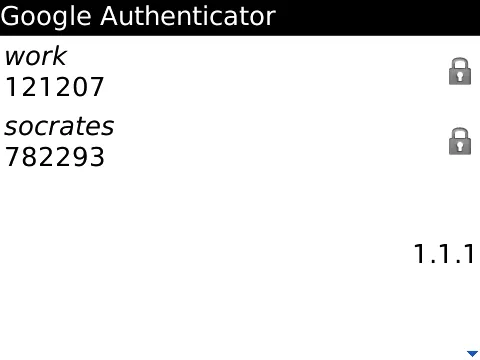
Practice drill: Open your email account's security settings. Find two-factor authentication, two-step verification, or sign-in security. Choose an authenticator app or a passkey if offered. Scan the QR code, enter the code, and save the backup codes somewhere offline.
You'll know it worked when: The next time you sign in on a new device, the account asks for a code or an approval, not just your password.
3. Make Files Findable
A messy desktop is not a personality flaw. It is a filing problem. The fix is a simple naming habit and a few folders you actually use.
Practice drill: Create four folders: Documents, Photos, Money, and Projects. Move ten stray files into them. Rename each file with a date and a plain description, like 2026-11-rent-receipt.pdf or 2026-10-insurance-letter.pdf. Use dashes or underscores instead of spaces if you sync files across devices.
You'll know it worked when: You can search for a word from a file name and find the file in under ten seconds.
4. Update Your Devices on Purpose
Updates are not just new emoji. They patch security holes. The easy move is to turn on automatic updates and then restart your devices regularly.
Practice drill: On your phone, open Settings and find Software Update or System Update. Turn on automatic updates. On your computer, do the same in System Settings or Windows Update. Restart both devices once.
You'll know it worked when: The device says it is up to date, and you have restarted it at least once this week.
5. Make One Backup
A backup is a copy of your files somewhere else. You do not need a complicated system to start. One copy is better than none.
Practice drill: Pick one thing you would hate to lose, like family photos or tax documents. Copy it to a cloud drive or an external hard drive. If you use both, even better. Check that the copy actually opens.
You'll know it worked when: You can open a backed-up photo or document from a different device, or you can see the copied file on the external drive.
6. Spot a Scam Message
Scams often rely on urgency. A package is stuck. A bank account is locked. A payment failed. The message wants you to click, call, or pay before you think.
Practice drill: Open your messages or email and find one message that feels pushy. Look for a weird sender address, a link that does not match the company, a request for gift cards, or a threat that you must act now. Do not click. Open the official app or type the company's address yourself. Report and delete the message.
You'll know it worked when: You can name the red flag in a message and you handled it without using the link.
7. Ask for Help Without Embarrassment
Nobody is born knowing where the setting is. Asking for help is a tech skill, not a failure. The trick is to give enough detail that someone can actually help.
Practice drill: Write three sentences: what you tried, what happened, and what you want to do. For example: I tried to back up my photos. The app says storage is full. I want to move them to my computer. Send that to a friend, a family member, or a library tech helper.
You'll know it worked when: You have sent the request, and you did not apologize for asking.
Your Next Step
Do not save this list and forget it. Pick the one skill that made you sigh the loudest. Set a 15-minute timer tomorrow and do only that one. The point is not to become a tech expert overnight. It is to stop feeling like the settings menu is a locked room. One small win makes the next one easier.